Payment
How to pay: crypto or card, step by step
We take payment as USDC (a dollar-pegged digital coin) on the Base network. You do not need to own crypto: you can pay with a debit or credit card, Apple Pay or Google Pay and the payment page converts it for you. Your order confirms automatically, usually within a few minutes. First time paying by card? Allow about 15 minutes to set up your free wallet.
- Choose Debit or credit card at checkout. Already hold crypto? Choose Cryptocurrency (USDC).
- The payment page shows the exact amount in USDC. Your CAD total is converted at the rate shown on your order.
- Already hold crypto? Send USDC on Base. No crypto? Use the card, Apple Pay or Google Pay option on that same page.
- Do not leave the payment page until it says Deposit received.
The steps
- Check outAdd your items to the cart, enter your shipping details and choose Debit or credit card (or Cryptocurrency (USDC) if you already hold crypto). Click Place order.
- Open your secure payment pageYou are taken to a payment page that shows the exact amount due. Tap Cards, Wallets, Banks & local methods. Already hold crypto? Pick your coin instead, or send USDC on the Base network to the address shown.
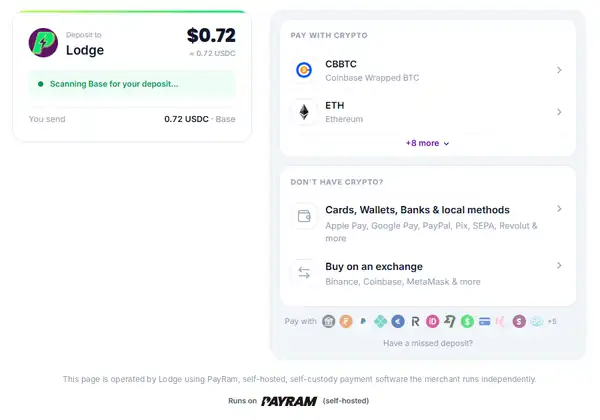
The payment page. Tap Cards, Wallets, Banks & local methods. - Sign in to your free walletChoose Continue with Google (or email). This creates a free wallet in your name, which holds the funds for your order.
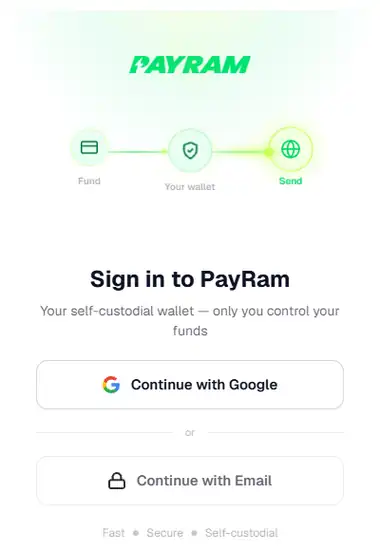
Sign in with Google or email. 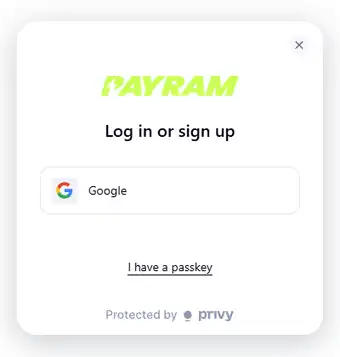
Pick Google when the pop-up appears. - Approve the sign-inGoogle asks you to confirm. Tap Continue. We never see your Google password.
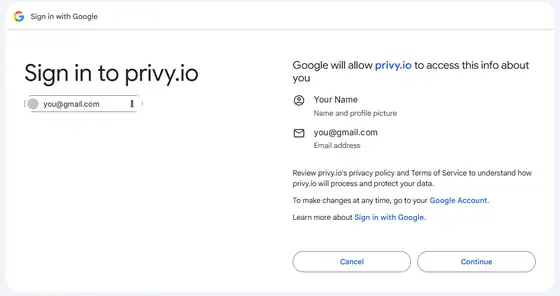
Approve the sign-in with Google. - Add fundsTap Add Funds, enter the amount in CAD (at least about $20, and enough to cover your order plus the small processing fee), choose Debit Card and tap Buy.
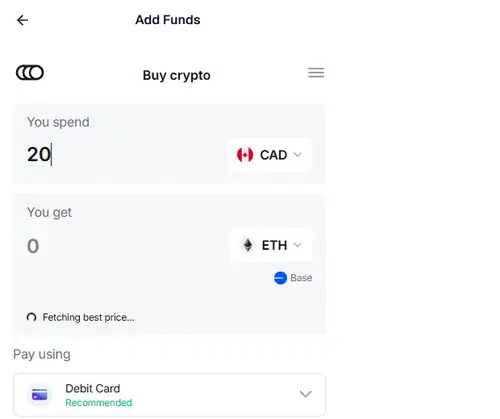
Enter the amount and choose your debit card. - Enter your details and cardThe card processor asks for your name, date of birth and address, then your card details. Apple Pay and Google Pay work here too. Use your own card and your own details.
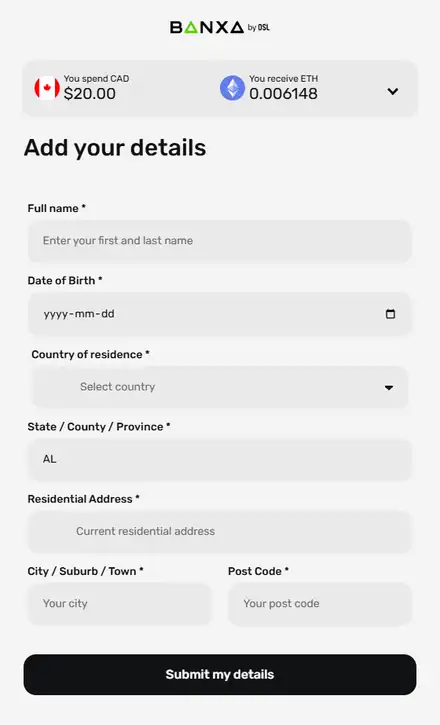
The details form. Your card details come on the next screen. - Wait for the fundsOnce the card payment clears you see a confirmation screen, then your wallet shows the new balance. This usually takes a few minutes.
- Confirm and sendBack in your wallet, the order payment is waiting under Action needed. Tap Confirm & Send.
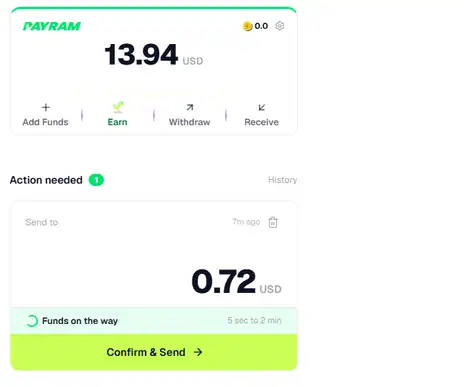
Tap Confirm & Send to pay for your order. - DoneWhen the payment page shows Deposit received, your order switches to Processing on its own and you receive an email. Next time is much quicker, because your wallet keeps any leftover balance.
- Send USDC on the Base network only. Funds sent on another network or in another coin may be lost and cannot be recovered.
- Fees from your wallet or exchange come out of what you send. If the amount arriving is more than 3% below the amount due, the order stays on hold. Send a little extra to be safe. Overpayments are accepted.
Frequently asked questions
Do I need a crypto wallet or an account?
No. If you pay by card, Apple Pay or Google Pay on the payment page, a wallet is created for you during that step. We never ask you for a password or recovery phrase, and you should never share one with anyone.
Why USDC on Base?
USDC is a coin designed to track the US dollar, so the amount you pay does not swing in value while you check out. Base is a low-fee network, so transfers cost cents rather than dollars.
How is my CAD total converted?
Your CAD total is converted to USD at the exchange rate recorded on your order, then paid in USDC. The rate is locked once you place the order.
How long does confirmation take?
Typically one to a few minutes. Card top-ups through the payment page can take a few minutes longer while the card payment clears.
I paid but my order is still on hold.
First check that the payment page says Deposit received. If the amount was more than 3% short, or the payment link expired, the order stays on hold. Email support@canadianpeptides.store with your order number and the transaction link shown on the payment page and we will sort it out.
I sent on the wrong network. What now?
Email us right away with the order number and transaction details. We cannot guarantee recovery of funds sent on a different network.
What if the payment link expires?
Do not send funds to an expired link. Place the order again or contact us and we will issue a fresh payment link.
Products are sold for laboratory research use only, not for human use. Questions about paying? Email support@canadianpeptides.store.